AI in Your Pocket (Part 3): Mobile OCR & Automated Data Extraction Workflows
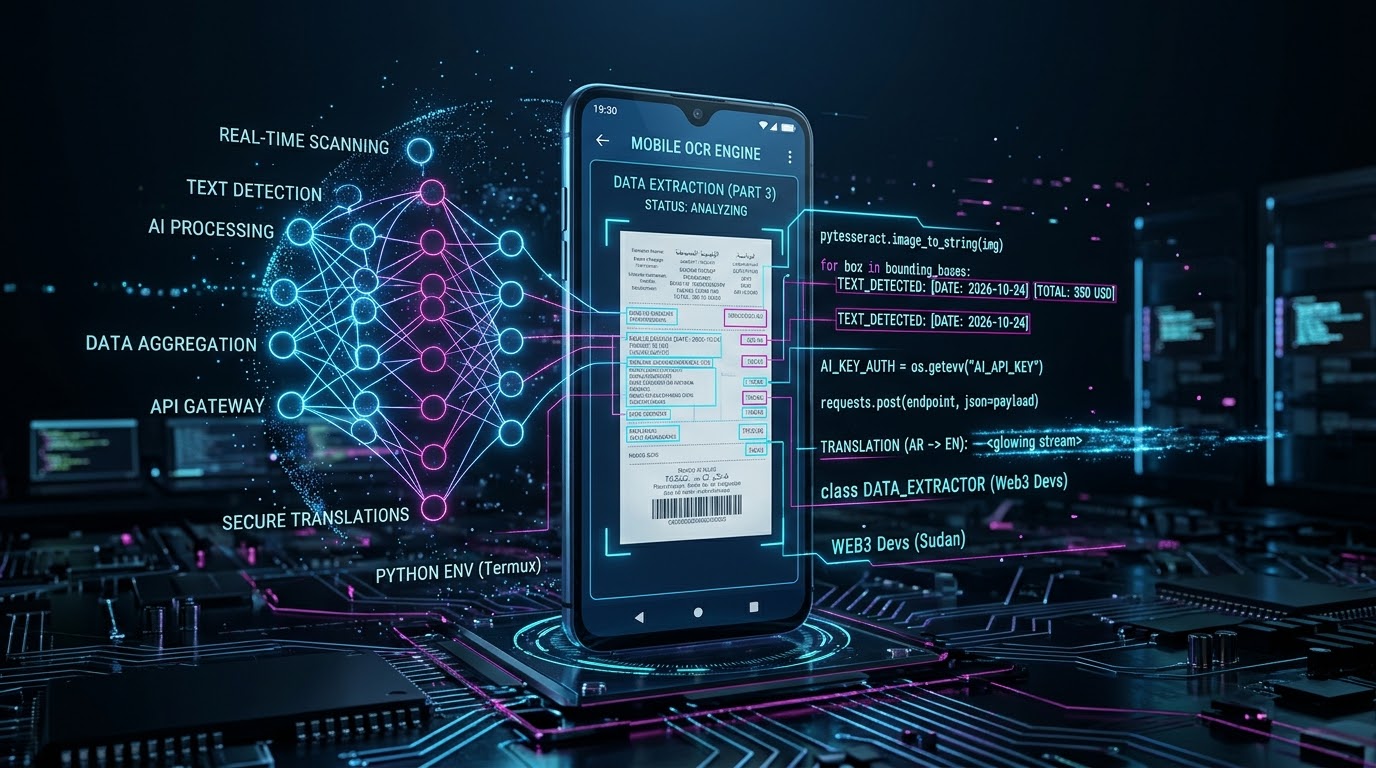
ℹ️ Image Disclosure: The cover image for this post was generated using AI image tools to visually represent mobile OCR technology and automated data extraction workflows on Android.
📖 Bridging Physical Documents & Mobile AI
In Part 1 and Part 2, we established lightweight Python API clients and engineered an autonomous background Telegram bot for text summarization.
However, real-world data isn't always available in clean, copyable text formats. Developers and engineers frequently deal with screenshots, scanned receipts, system terminal logs, or graphic infographics.
Welcome to Part 3 of AI in Your Pocket. Today, we expand our mobile workstation's capabilities by integrating Optical Character Recognition (OCR) directly into Termux. We will write a Python pipeline that extracts raw text from images and pipes it immediately into an AI engine for structured data extraction.
🛠️ 1. Installing OCR Dependencies in Termux
To extract text from images locally on Android, we use Tesseract OCR along with Python image processing libraries (Pillow and pytesseract).
Execute the following commands in Termux to set up the native OCR binaries:
pkg update && pkg upgrade -y
pkg install tesseract-ocr libjpeg-turbo -y
pip install pytesseract pillow requests python-dotenv
🔐 2. Workspace & Environment Configuration
Ensure your .env file contains your valid AI API key:
nano .env
Verify that your credentials are defined:
AI_API_KEY=your_actual_ai_api_key_here
Press CTRL + O then Enter to save, and CTRL + X to exit.
💻 3. Writing the OCR & AI Extraction Pipeline
Now, we build mobile_ocr_ai.py. This script loads an image from your device storage, extracts the text using Tesseract, and forwards the unformatted text to our AI model to turn it into structured JSON data.
import os
import requests
import pytesseract
from PIL import Image
from dotenv import load_dotenv
Load credentials
load_dotenv()
AI_KEY = os.getenv("AI_API_KEY")
AI_ENDPOINT = "https://api.openai.com/v1/chat/completions"
def extract_text_from_image(image_path):
try:
print(f"📸 Reading image: {image_path}...")
img = Image.open(image_path)
extracted_text = pytesseract.image_to_string(img)
return extracted_text.strip()
except Exception as e:
print(f"[!] OCR Extraction Error: {e}")
return None
def process_text_with_ai(raw_text):
if not raw_text:
return "No text available to process."
headers = {
    "Authorization": f"Bearer {AI_KEY}",
    "Content-Type": "application/json"
}

prompt = f"Analyze the following OCR-extracted text and format it into clean, key-value pairs or structured JSON:\n\n{raw_text}"

payload = {
    "model": "gpt-3.5-turbo",
    "messages": [
        {"role": "system", "content": "You are an automated data structuring engine."},
        {"role": "user", "content": prompt}
    ],
    "temperature": 0.2
}

try:
    response = requests.post(AI_ENDPOINT, json=payload, headers=headers, timeout=20)
    if response.status_code == 200:
        return response.json()['choices'][0]['message']['content']
    return f"[!] AI API Error: {response.status_code}"
except Exception as e:
    return f"[!] Processing Error: {str(e)}"
def main():
print("🚀 Mobile OCR & AI Data Extraction Gateway\n")
# Path to target screenshot or document image on Android storage
sample_image = "sample_receipt.jpg"

if not os.path.exists(sample_image):
    print(f"[!] Please place a test image named '{sample_image}' in the working directory.")
    return

# Step 1: Perform Local OCR
raw_ocr_text = extract_text_from_image(sample_image)
print("\n🔍 **Raw Text Extracted via OCR:**")
print("-" * 40)
print(raw_ocr_text)
print("-" * 40)

# Step 2: AI Data Structuring
print("\n🧠 Processing raw text through AI...")
structured_data = process_text_with_ai(raw_ocr_text)

print("\n📊 **Structured AI Output:**")
print("-" * 40)
print(structured_data)
print("-" * 40)
if name == 'main':
main()
⚡ 4. Real-World Mobile Use Cases
Deploying OCR + AI on a mobile terminal unlocks high-efficiency micro-workflows:
- 📄 Automated Document Scanning: Convert physical paper receipts or invoices into structured database entries instantly.
- 🖥️ System Log Analysis: Take screenshots of server terminal errors and have AI diagnose the root cause immediately.
- 🌐 Language Translation & Parsing: Extract foreign text from screenshots and receive context-aware translations.
📊 5. Summary & Finale Preview
Integrating computer vision via OCR with generative AI models transforms your mobile device into an end-to-end data processing engine.
🔮 In Part 4 (Finale): We consolidate everything we have built! We will construct an AI Background Assistant Engine on Android that ties together scheduled automation, local file processing, and AI reporting into a seamless autonomous service!
🏷️ Tags & Metadata
#technology #ai #programming #python #web3 #steemexclusive #sudan
Instalar tesseract en Termux es un golazo, no sabía que corría tan liviano en Android. ¿Probaste con fotos sacadas con la cámara del celu o solo con capturas? Ahí la diferencia se nota.
That is a great observation! There is indeed a big difference between crisp screenshots and direct camera photos.
Camera photos introduce issues like varying light, lens distortion, angles, and shadows. For photos taken with the smartphone camera, I add a pre-processing step using Pillow/OpenCV before feeding the image to Tesseract:
While clean screenshots work straight out of the box, handling direct camera shots requires binarization preprocessing to maintain high OCR accuracy on Android!