Hacking Necromancer - Capture the Flag - Penetration Testing step by step.
My bread and butter as Cyber Security Professional at QUE.com is to ensure my client working environment is always secure. Yes always secure! Not maybe or mostlikely. I would like to share this penetration testing tutorial I published last year. Knowledge is power, continuous learning is an excellent offense. This is a long article for pentest step by step tutorial. Please follow me @Yehey, Up Vote or Resteem so other will learn too.
Let's begin.
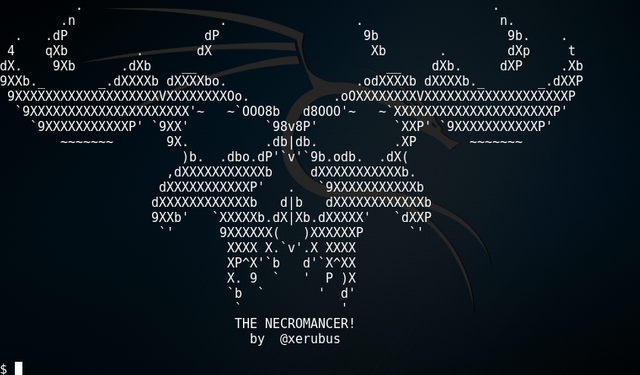
Capture The Flag - Necromancer. Practicing my penetration testing skills to hack a target machine. Here's my test environment in my own private virtual network.
I setup my Kali Linux in host virtual network and my target machine (Necromancer) which I downloaded a OVA image from VulnHub website.
When I started my Kali Linux virtual machine, I have an assigned IP Address 192.168.231.129. This most likely a different IP address when you setup your own private network. And my target machine Necromancer IP address is 192.168.231.128. I saw this when I started the Necromancer virtual machine. This save me some time to scan all /24 within my network.
Anyway, if you still want to scan your network you can use "netdiscover" tool. If you're not sure what options to use simply run "netdiscover --help". Okay, got it? Now run # netdiscover -r 192.168.231.0/24 [Enter] to scan your private network. Here's the result of my network. I run "ifconfig" in my Kali to know the assigned IP address, then the other IP most likely for my target network.
192.168.231.1 00:50:56:c0:00:01 1 60 VMware, Inc.
192.168.231.128 00:0c:29:a5:8c:67 1 60 VMware, Inc.
192.168.231.129 00:50:56:f0:0a:96 1 60 VMware, Inc.
With this information I can simply run nmap to my target IP address.
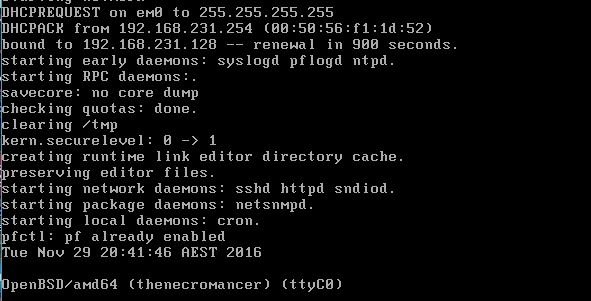
Note: IP Address renewal in 900 seconds.
Now my private network, Kali and target machine are ready. Let's begin hacking my target machine.
From Kali Linux virtual machine run # nmap 192.168.231.29 to see what I can discover.
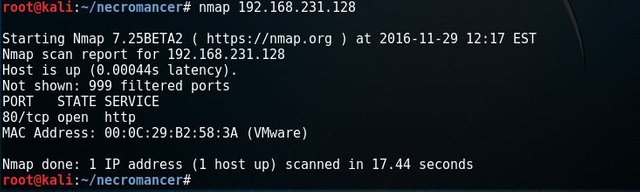
I found port 80 open and 1 host up. That's a good start. Let's run # nmap -sU -n -r -T4 192.168.231.128
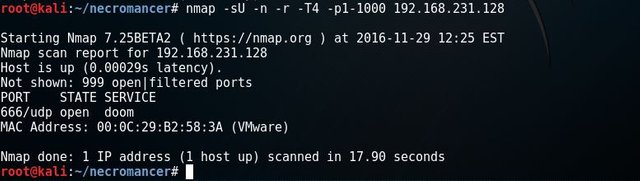
Now it's getting interesting. I found UDP port 666 a service for doom.
Let's fire up netcat using the newly discovered UDP port 666 # nc 192.168.231.128 666 [Enter].
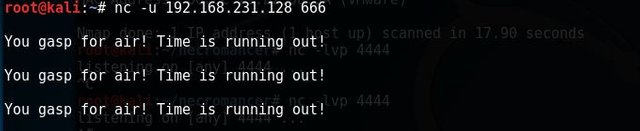
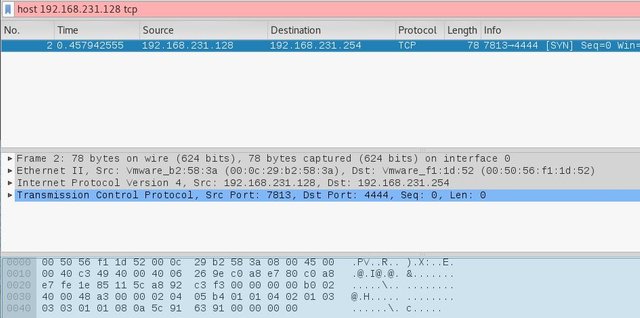
Hmm. Nothing happen. I wonder what's going on in the background. One way to find out, let's run our network snipping tool wireshark. I filter the result using my target machine IP Address 192.168.231.128 and found out it is trying to connect to the destination port 4444.
I open another terminal window, and setup to listen using port 4444 # nc -lvp 4444 [Enter]. And re-run # nc -u 192.168.231.128 666 [Enter], then wait to see the output in listening terminal window.
This is the result.
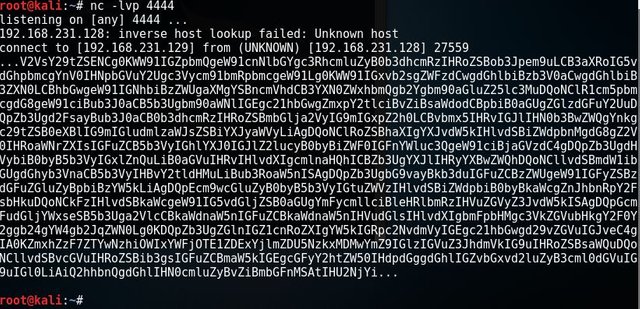
My first guess, it is a base64 code. I copied the code to my dumptext.txt file. And run #base64 -d -i dumptext.txt [Enter]
Woohh. I got the first flag.
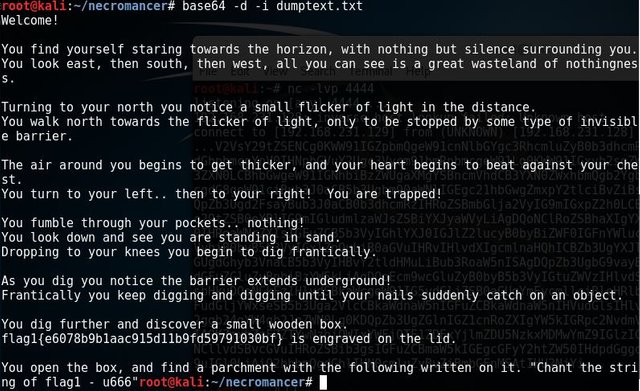
I copied flag1{e6078b9b1aac915d11b9fd59791030bf} to my flags.txt file for recording purpose, just like a trophy :)
Looks like flag1{e6078b9b1aac915d11b9fd59791030bf} is a MD5 hash. Searching google for "MD5 decrypt". Visit a website https://hashkiller.co.uk/md5-decrypter.aspx to decrypt it.

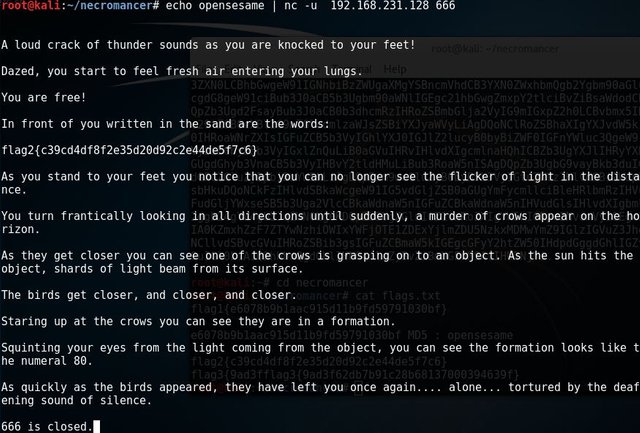
I've got "opensesame". Now let's run this command. # echo opensesame | nc -u 192.168.231.128 666
After running the command, it reveal our flag2{c39cd4df8f2e35d20d92c2e44de5f7c6}.
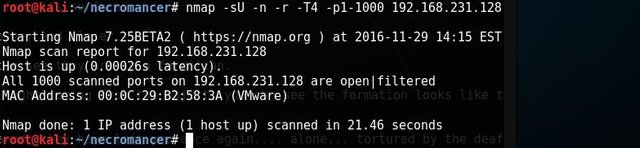
I got another port 80, and notice port 666 is closed. I verified it by running # nmap -sU -n -r -T4 192.168.231.128. Yes, it is confirmed port 666 is not there anymore.
Open a Firefox, and enter URL 192.168.231.128, no need to enter port 80. I got the website with a bird image.

Reading the text, doesn't give any hint for my next move except with the obvious bird image. Let me download this image and see what I can dig up. I saved it as "pileoffeathers.jpg" to my necromancer folder.
Let's examine the "pileoffeathers.jpg" file. Run #file pileoffeathers.jpg to see what it is, then #exif pileoffeathers.jpg. We have no value of color space, that's interesting.

Next thing to do is run hexeditor to see what's in the jpg file # hexeditor pileoffeathers.jpg
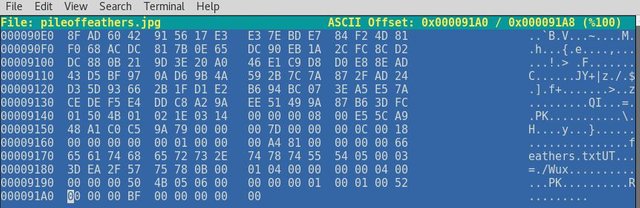
Look what I found? A file name feathers.txt within the pileoffeathers.jpg hidden, not anymore :)
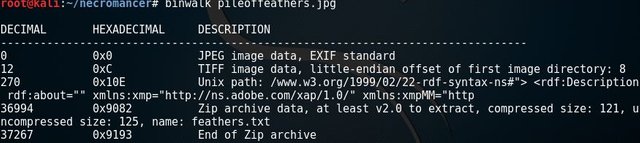
Running #binwalk pileoffeathers.jpg confirmed there is zip archive data.
Let's run # unzip pileoffeathers.jpg maybe it will produce this feathers.txt file.

Viola feathers.txt is available for me to read.
root@kali:~/necromancer# cat feathers.txt ZmxhZzN7OWFkM2Y2MmRiN2I5MWMyOGI2ODEzNzAwMDM5NDYzOWZ9IC0gQ3Jvc3MgdGhlIGNoYXNtIGF0IC9hbWFnaWNicmlkZ2VhcHBlYXJzYXR0aGVjaGFzbQ== root@kali:~/necromancer#Hmm. Another base64 coded file. No problem, let's run it.
root@kali:~/necromancer# base64 -d -i feathers.txt flag3{9ad3f62db7b91c28b68137000394639f} - Cross the chasm at /amagicbridgeappearsatthechasmThe feathers.txt file revealed flag3{9ad3f62db7b91c28b68137000394639f}. We are getting lucky here and another sub-folder /amagicbridgeappearsatthechasm
Let's visit the website http://192.168.231.128/amagicbridgeappearsatthechasm/ shows more text and an image.
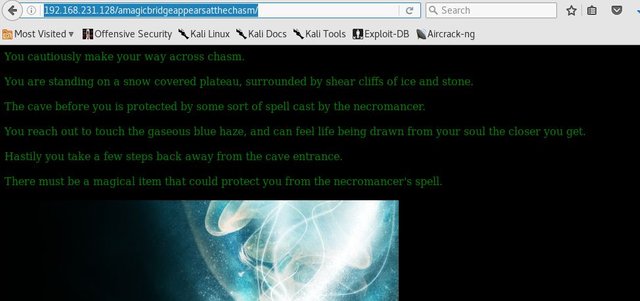
"There must be a magical item that could protect you from the necromancer's spell." Is this a hint? I don't know.
Continue your Penetration Testing training to my website at https://que.com/ctf-necromancer/
Like it, please Vote Up, Resteem and follow me @Yehey
Thank you.
Well done sir! Very well written and captures every important detail needed. Voted up, Resteemed and Followed!
Great post! Thanks for the explanations and screenshots. Been trying to learn this.