# 🎬 DaVinci Resolve দিয়ে ভিডিও এডিটিং: বেসিক থেকে অ্যাডভান্স | ৩০ ক্লাসের ফ্রি কোর্স (পর্ব ০১)
আসসালামু আলাইকুম, সবাইকে স্বাগতম! 👋
আজকাল ভিডিও কনটেন্টের যুগ। YouTube, Facebook, TikTok বা নিজের ব্যবসার প্রচার, সবখানেই ভালো এডিটিং জানা মানুষের চাহিদা বাড়ছে। অনেকেই এডিটিং শিখতে চান, কিন্তু দামি সফটওয়্যার, কঠিন ইন্টারফেস আর বাংলায় ভালো গাইডের অভাবে শুরুই করতে পারেন না।
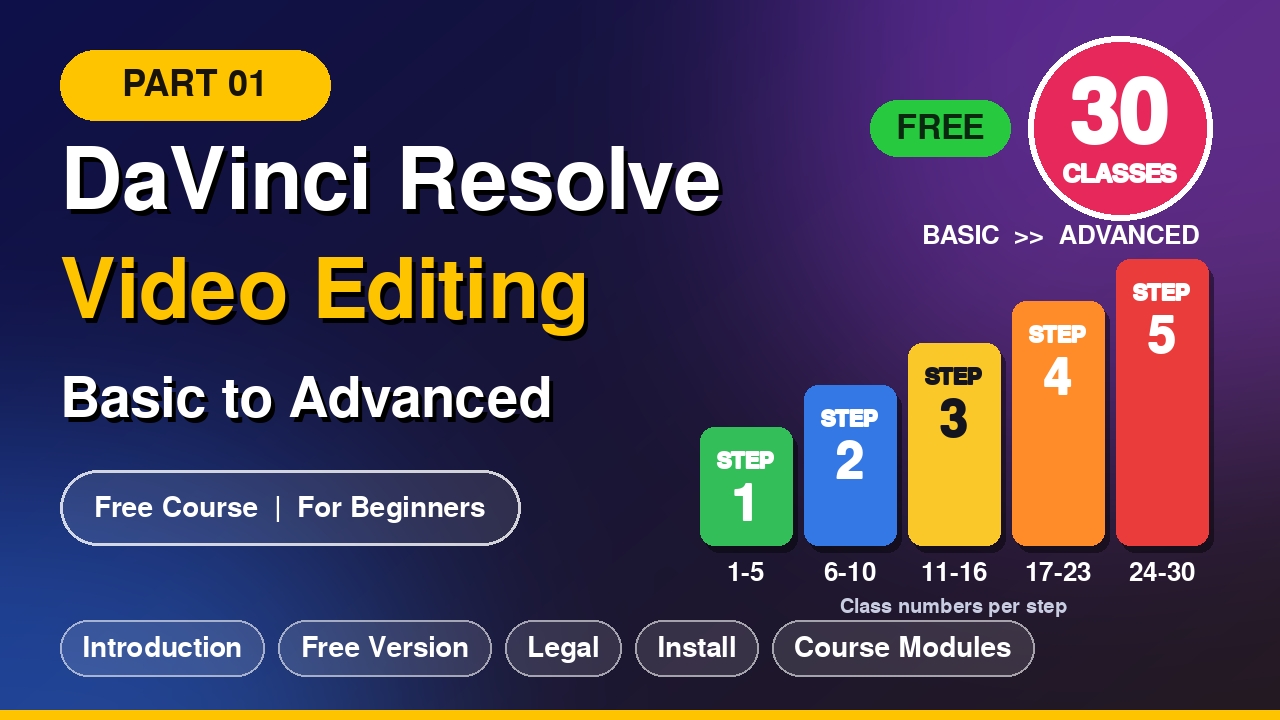
তাই আজ থেকে শুরু করছি ৩০ ক্লাসের একটি সম্পূর্ণ বাংলা কোর্স, যেখানে একদম শূন্য থেকে শুরু করে ধাপে ধাপে আপনাকে অ্যাডভান্স লেভেলে নিয়ে যাব। আজকের এই প্রথম পোস্টে আমরা জানব সফটওয়্যারটির পরিচয়, ফ্রিতে এটি কীভাবে কাজ করে, বৈধতার বিষয়, ইনস্টলের নিয়ম এবং পুরো কোর্সের মডিউল।
🔰 DaVinci Resolve কী?
DaVinci Resolve একটি পেশাদার ভিডিও এডিটিং সফটওয়্যার, যা তৈরি করেছে Blackmagic Design নামের প্রতিষ্ঠান। হলিউডের অনেক সিনেমা ও টিভি প্রোডাকশনে এর কালার গ্রেডিং ব্যবহার হয়।
এর সবচেয়ে বড় বৈশিষ্ট্য হলো, এক সফটওয়্যারেই আপনি পাচ্ছেন:
- ✂️ ভিডিও এডিটিং (Cut ও Edit পেজ)
- 🎨 কালার কারেকশন ও গ্রেডিং (Color পেজ)
- ✨ ভিজ্যুয়াল ইফেক্ট ও মোশন গ্রাফিক্স (Fusion পেজ)
- 🎧 অডিও এডিটিং ও মিক্সিং (Fairlight পেজ)
- 📤 এক্সপোর্ট (Deliver পেজ)
অর্থাৎ আলাদা আলাদা কয়েকটা সফটওয়্যার না শিখে একটাতেই সব কাজ করা যায়।
💰 ফ্রিতে কীভাবে কাজ করে?
DaVinci Resolve-এর দুটি সংস্করণ আছে:
| Free ভার্সন | Studio ভার্সন (পেইড) | |
|---|---|---|
| দাম | সম্পূর্ণ ফ্রি | এককালীন কেনা (সাবস্ক্রিপশন নয়) |
| ওয়াটারমার্ক | ❌ নেই | ❌ নেই |
| রেজোলিউশন | UHD 4K পর্যন্ত | আরও উচ্চ রেজোলিউশন |
| কাজের ধরন | এডিটিং, কালার, ফিউশন, অডিও সবই আছে | বাড়তি AI টুল, আরও ইফেক্ট ও দ্রুত রেন্ডারিং |
নতুনদের জন্য ফ্রি ভার্সনই যথেষ্ট। YouTube, Facebook বা Reels-এর জন্য ভিডিও বানাতে এর বেশি কিছু লাগবে না। এই কোর্সের সব ক্লাস ফ্রি ভার্সনেই করা যাবে। (সংস্করণভেদে ফিচার ও শর্ত বদলাতে পারে, তাই ডাউনলোডের আগে অফিসিয়াল সাইটে একবার দেখে নেবেন।)
⚖️ এটি কি লিগ্যাল?
হ্যাঁ, সঠিক উপায়ে ব্যবহার করলে সম্পূর্ণ লিগ্যাল।
- ✅ অফিসিয়াল সাইট থেকে ডাউনলোড করা ফ্রি ভার্সন বৈধ। এটি ব্যক্তিগত ও বাণিজ্যিক, দুই কাজেই ব্যবহার করা যায়।
- ✅ এডিট করা ভিডিও YouTube বা ক্লায়েন্টের কাজে ব্যবহার করতে পারবেন।
- ❌ Studio ভার্সনের ক্র্যাক বা পাইরেটেড কপি অবৈধ, আর এতে ভাইরাস ও ম্যালওয়্যারের ঝুঁকিও থাকে।
- ❌ অন্যের কপিরাইট করা গান বা ফুটেজ অনুমতি ছাড়া ব্যবহার করলে আপনার ভিডিও ক্লেইম বা ডিলিট হতে পারে। তাই Pexels, Pixabay-এর মতো ফ্রি লাইসেন্সের সাইট ব্যবহার করুন।
💻 কম্পিউটার কেমন লাগবে?
DaVinci Resolve তুলনামূলক ভারী সফটওয়্যার। সাধারণ সুপারিশ:
- RAM: কমপক্ষে ১৬ GB (৮ GB-তে চলতে পারে, তবে ধীর হবে)
- গ্রাফিক্স কার্ড (GPU): আলাদা GPU থাকলে ভালো
- স্টোরেজ: SSD হলে কাজ অনেক দ্রুত হয়
- অপারেটিং সিস্টেম: Windows, macOS বা Linux
সঠিক ও হালনাগাদ চাহিদা অফিসিয়াল সাইটে পাবেন। পিসি দুর্বল হলে ভয় নেই, পরের ক্লাসগুলোতে আমি "প্রক্সি" ও পারফরম্যান্স টিপস দেখাব।
📥 ইনস্টল করবেন যেভাবে (ধাপে ধাপে)
- ব্রাউজারে গিয়ে সার্চ করুন "DaVinci Resolve Blackmagic Design" এবং অফিসিয়াল সাইট (blackmagicdesign.com) খুলুন।
- DaVinci Resolve পেজে গিয়ে Download বাটনে ক্লিক করুন।
- DaVinci Resolve (Free) সংস্করণটি বেছে নিন। Studio নয়, ভুল করবেন না।
- আপনার অপারেটিং সিস্টেম (Windows/Mac/Linux) নির্বাচন করুন।
- একটি ছোট রেজিস্ট্রেশন ফর্ম আসবে। নাম, ইমেইল ইত্যাদি দিয়ে Register & Download দিন।
- ডাউনলোড শেষ হলে ফাইলটি আনজিপ (Extract) করুন।
- ইনস্টলার ফাইলে ডাবল ক্লিক করে Next → Install দিয়ে ইনস্টল সম্পন্ন করুন।
- সফটওয়্যার চালু করে New Project খুলুন। ব্যস, প্রস্তুত! 🎉
💡 টিপস: ইনস্টলের সময় ইন্টারনেট ও চার্জ ঠিক রাখুন। কোনো সমস্যা হলে কমেন্টে জানাবেন।
📚 ৩০ ক্লাসের কোর্স মডিউল
কোর্সটি পাঁচটি ধাপে সাজানো, যাতে আপনি সহজে বুঝতে পারেন কখন কী শিখছেন।
🟢 ধাপ ১: একদম শুরু (ক্লাস ১-৫)
- ক্লাস ১: DaVinci Resolve পরিচিতি ও ইনস্টলেশন (আজকের পোস্ট)
- ক্লাস ২: ইন্টারফেস পরিচিতি: সাতটি পেজ কী কাজ করে
- ক্লাস ৩: নতুন প্রজেক্ট তৈরি ও প্রজেক্ট সেটিংস
- ক্লাস ৪: ফুটেজ ইমপোর্ট ও Media Pool সাজানো
- ক্লাস ৫: টাইমলাইন বোঝা ও প্রথম ক্লিপ বসানো
🔵 ধাপ ২: বেসিক এডিটিং (ক্লাস ৬-১০)
- ক্লাস ৬: কাটা, জোড়া ও ট্রিম করার মূল টুলস
- ক্লাস ৭: শর্টকাট কী ও দ্রুত এডিটিং কৌশল
- ক্লাস ৮: ক্লিপের গতি বাড়ানো-কমানো (Speed Change, Slow Motion)
- ক্লাস ৯: ক্রপ, জুম, পজিশন ও রোটেশন
- ক্লাস ১০: মিনি প্রজেক্ট ১: ৩০ সেকেন্ডের প্রথম ভিডিও বানানো
🟡 ধাপ ৩: টাইটেল, ট্রানজিশন ও অডিও (ক্লাস ১১-১৬)
- ক্লাস ১১: ট্রানজিশন ও ইফেক্ট ব্যবহার
- ক্লাস ১২: টাইটেল ও টেক্সট এডিটিং (বাংলা ফন্টসহ)
- ক্লাস ১৩: সাবটাইটেল ও ক্যাপশন যোগ করা
- ক্লাস ১৪: অডিও বেসিক: ভলিউম, ফেড ইন-আউট
- ক্লাস ১৫: ব্যাকগ্রাউন্ড মিউজিক ও নয়েজ রিমুভাল
- ক্লাস ১৬: মিনি প্রজেক্ট ২: ভ্লগ বা প্রোমো ভিডিও এডিট
🟠 ধাপ ৪: কালার ও ভিজ্যুয়াল ইফেক্ট (ক্লাস ১৭-২৩)
- ক্লাস ১৭: কালার কারেকশন বেসিক (এক্সপোজার, কনট্রাস্ট, হোয়াইট ব্যালেন্স)
- ক্লাস ১৮: Color পেজের নোড সিস্টেম
- ক্লাস ১৯: সিনেমাটিক কালার গ্রেডিং ও LUT ব্যবহার
- ক্লাস ২০: স্কিন টোন ঠিক করা ও নির্দিষ্ট রঙ আলাদা করা
- ক্লাস ২১: গ্রিন স্ক্রিন (Chroma Key) দিয়ে ব্যাকগ্রাউন্ড বদলানো
- ক্লাস ২২: মোশন ট্র্যাকিং ও মাস্কিং
- ক্লাস ২৩: কিফ্রেম অ্যানিমেশন
🔴 ধাপ ৫: অ্যাডভান্স ও প্রফেশনাল লেভেল (ক্লাস ২৪-৩০)
- ক্লাস ২৪: Fusion পেজের পরিচিতি ও মোশন গ্রাফিক্স
- ক্লাস ২৫: অ্যানিমেটেড টাইটেল ও লোয়ার থার্ডস
- ক্লাস ২৬: Fairlight দিয়ে প্রফেশনাল অডিও মিক্সিং
- ক্লাস ২৭: মাল্টিক্যাম এডিটিং
- ক্লাস ২৮: এক্সপোর্ট সেটিংস: YouTube, Facebook, Reels ও শর্টসের জন্য
- ক্লাস ২৯: দ্রুত কাজ ও পারফরম্যান্স টিপস (প্রক্সি, ক্যাশ)
- ক্লাস ৩০: ফাইনাল প্রজেক্ট: শুরু থেকে শেষ পর্যন্ত একটি পূর্ণাঙ্গ ভিডিও, সঙ্গে ফ্রিল্যান্সিং ও আয়ের দিকনির্দেশনা
🎯 এই কোর্স শেষে আপনি যা পারবেন
- নিজের ভিডিও আত্মবিশ্বাসের সঙ্গে এডিট করতে
- YouTube চ্যানেল বা সোশ্যাল মিডিয়ার জন্য মানসম্মত কনটেন্ট বানাতে
- সিনেমাটিক কালার গ্রেডিং ও বেসিক ভিজ্যুয়াল ইফেক্ট করতে
- প্রয়োজনে ক্লায়েন্টের কাজ নিয়ে ফ্রিল্যান্সিং শুরু করতে
📌 কীভাবে এগোবেন?
- প্রতিটি ক্লাস দেখে নিজে হাতে প্র্যাকটিস করুন। শুধু দেখলে শেখা হয় না।
- কোনো ক্লাস না বুঝলে কমেন্টে প্রশ্ন করুন, আমি উত্তর দেব।
- এই সিরিজ ফলো করে রাখুন, যাতে পরের ক্লাস মিস না হয়।
- বন্ধুদের মধ্যে যারা এডিটিং শিখতে চায়, তাদের সঙ্গে শেয়ার করুন।
🙋 আপনাদের জন্য প্রশ্ন
আপনি এডিটিং শিখতে চান কেন? YouTube চ্যানেলের জন্য, ফ্রিল্যান্সিংয়ের জন্য, নাকি শখে? কমেন্টে জানাবেন। এতে আমি ক্লাসগুলো আপনাদের প্রয়োজন অনুযায়ী আরও সাজাতে পারব।
পরের পর্বে: DaVinci Resolve-এর ইন্টারফেস ও সাতটি পেজের বিস্তারিত পরিচিতি।
ততক্ষণ সফটওয়্যারটি ডাউনলোড ও ইনস্টল করে রাখুন। ধন্যবাদ সবাইকে, আল্লাহ হাফেজ! ❤️
ENGLISH VERSION
Assalamu Alaikum, and welcome, everyone!
We live in the age of video content. Whether it's YouTube, Facebook, TikTok, or promoting your own business, the demand for people who can edit well is growing everywhere. Many people want to learn editing, but expensive software, intimidating interfaces, and a lack of good guides in Bangla stop them from even starting.
So starting today, I'm launching a complete 30-class course in Bangla, where I'll take you from absolute zero to an advanced level, step by step. In this first post, we'll cover what the software is, how it works for free, whether it's legal, how to install it, and the full course module list.
What Is DaVinci Resolve?
DaVinci Resolve is a professional video editing program made by Blackmagic Design. Its color grading is used in many Hollywood films and TV productions.
Its biggest strength is that one program gives you:
- ✂️ Video editing (Cut and Edit pages)
- Color correction and grading (Color page)
- ✨ Visual effects and motion graphics (Fusion page)
- Audio editing and mixing (Fairlight page)
- Exporting (Deliver page)
In other words, you don't need to learn several separate programs. You can do everything in one.
How Does It Work for Free?
DaVinci Resolve comes in two versions:
| Free Version | Studio Version (Paid) | |
|---|---|---|
| Price | Completely free | One-time purchase (not a subscription) |
| Watermark | ❌ None | ❌ None |
| Resolution | Up to UHD 4K | Higher resolutions |
| What you get | Editing, color, Fusion, and audio all included | Extra AI tools, more effects, and faster rendering |
For beginners, the free version is enough. You don't need anything more to make videos for YouTube, Facebook, or Reels. Every class in this course can be done in the free version. (Features and terms may change between versions, so check the official site once before downloading.)
⚖️ Is It Legal?
Yes, it's completely legal when used the right way.
- ✅ The free version downloaded from the official site is legitimate. You can use it for both personal and commercial work.
- ✅ You can use your edited videos on YouTube or for client work.
- ❌ Cracked or pirated copies of the Studio version are illegal, and they also carry a risk of viruses and malware.
- ❌ If you use someone else's copyrighted music or footage without permission, your video may be claimed or taken down. So use free-license sites such as Pexels and Pixabay.
What Kind of Computer Do You Need?
DaVinci Resolve is a fairly heavy program. General recommendations:
- RAM: At least 16 GB (it can run on 8 GB, but slowly)
- Graphics card (GPU): A dedicated GPU is better
- Storage: An SSD makes work much faster
- Operating system: Windows, macOS, or Linux
You'll find the exact, up-to-date requirements on the official site. If your PC is weak, don't worry. In later classes I'll show "proxy" and performance tips.
How to Install (Step by Step)
- Open your browser, search for "DaVinci Resolve Blackmagic Design", and open the official site (blackmagicdesign.com).
- Go to the DaVinci Resolve page and click the Download button.
- Choose the DaVinci Resolve (Free) version. Not Studio, so be careful.
- Select your operating system (Windows/Mac/Linux).
- A short registration form will appear. Fill in your name, email, and so on, then click Register & Download.
- When the download finishes, unzip (extract) the file.
- Double-click the installer and complete the installation with Next → Install.
- Open the software and start a New Project. That's it, you're ready!
Tip: Keep your internet connection stable and your device charged during installation. If you run into any problem, let me know in the comments.
The 30-Class Course Modules
The course is arranged in five stages so you can easily see what you're learning and when.
Stage 1: Getting Started (Classes 1–5)
- Class 1: Introduction to DaVinci Resolve and installation (today's post)
- Class 2: Interface overview: what each of the seven pages does
- Class 3: Creating a new project and project settings
- Class 4: Importing footage and organizing the Media Pool
- Class 5: Understanding the timeline and placing your first clip
Stage 2: Basic Editing (Classes 6–10)
- Class 6: Core tools for cutting, joining, and trimming
- Class 7: Shortcut keys and fast editing techniques
- Class 8: Speeding clips up and slowing them down (Speed Change, Slow Motion)
- Class 9: Crop, zoom, position, and rotation
- Class 10: Mini Project 1: Making your first 30-second video
Stage 3: Titles, Transitions, and Audio (Classes 11–16)
- Class 11: Using transitions and effects
- Class 12: Titles and text editing (including Bangla fonts)
- Class 13: Adding subtitles and captions
- Class 14: Audio basics: volume, fade in and fade out
- Class 15: Background music and noise removal
- Class 16: Mini Project 2: Editing a vlog or promo video
Stage 4: Color and Visual Effects (Classes 17–23)
- Class 17: Color correction basics (exposure, contrast, white balance)
- Class 18: The node system on the Color page
- Class 19: Cinematic color grading and using LUTs
- Class 20: Fixing skin tones and isolating specific colors
- Class 21: Green screen (Chroma Key) and changing backgrounds
- Class 22: Motion tracking and masking
- Class 23: Keyframe animation
Stage 5: Advanced and Professional Level (Classes 24–30)
- Class 24: Introduction to the Fusion page and motion graphics
- Class 25: Animated titles and lower thirds
- Class 26: Professional audio mixing with Fairlight
- Class 27: Multicam editing
- Class 28: Export settings for YouTube, Facebook, Reels, and Shorts
- Class 29: Working faster and performance tips (proxies, cache)
- Class 30: Final project: a complete video from start to finish, plus guidance on freelancing and earning
What You Will Be Able to Do After This Course
- Edit your own videos with confidence
- Create quality content for a YouTube channel or social media
- Do cinematic color grading and basic visual effects
- Start freelancing and take on client work if you want to
How to Make the Most of This Course
- Practice by hand after watching each class. You won't learn just by watching.
- If you don't understand a class, ask in the comments and I'll answer.
- Follow this series so you don't miss the next class.
- Share it with friends who want to learn editing.
A Question for You
Why do you want to learn editing? For a YouTube channel, for freelancing, or just as a hobby? Let me know in the comments. It will help me shape the classes around what you need.
Coming up next: A detailed introduction to the DaVinci Resolve interface and its seven pages.
Until then, please download and install the software. Thank you, everyone. Allah Hafez! ❤️
[screenshot]